What it does

Lock parts of your account with a second password. What you lock stays blocked until you unlock it with that password.
Step 1: Open the lock window
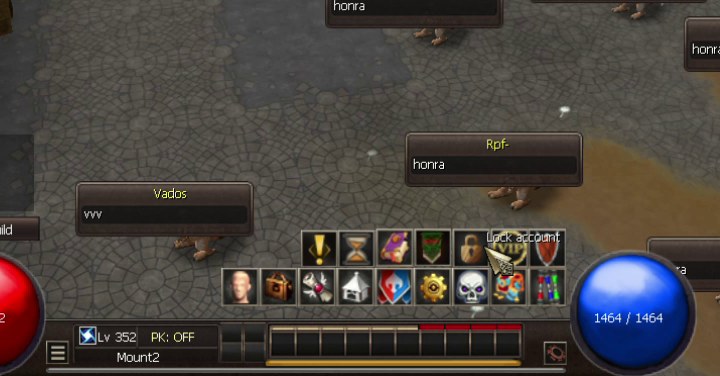
Click the padlock (Lock account) in the main menu, above your skill bar.
Step 2: Choose what to lock
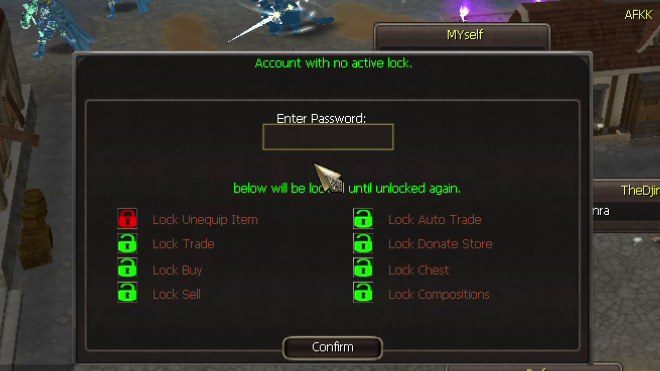
Click an option to mark it. Red = will be locked. Green = stays open.
- Lock Unequip Item: you cannot move your items or take off your gear.
- Lock Trade: no trading with other players.
- Lock Buy and Lock Sell: no buying or selling.
- Lock Auto Trade and Lock Donate Store.
- Lock Chest: no moving items in or out of your chest.
- Lock Compositions: no crafting or refining at the NPCs.
Step 3: Set your password
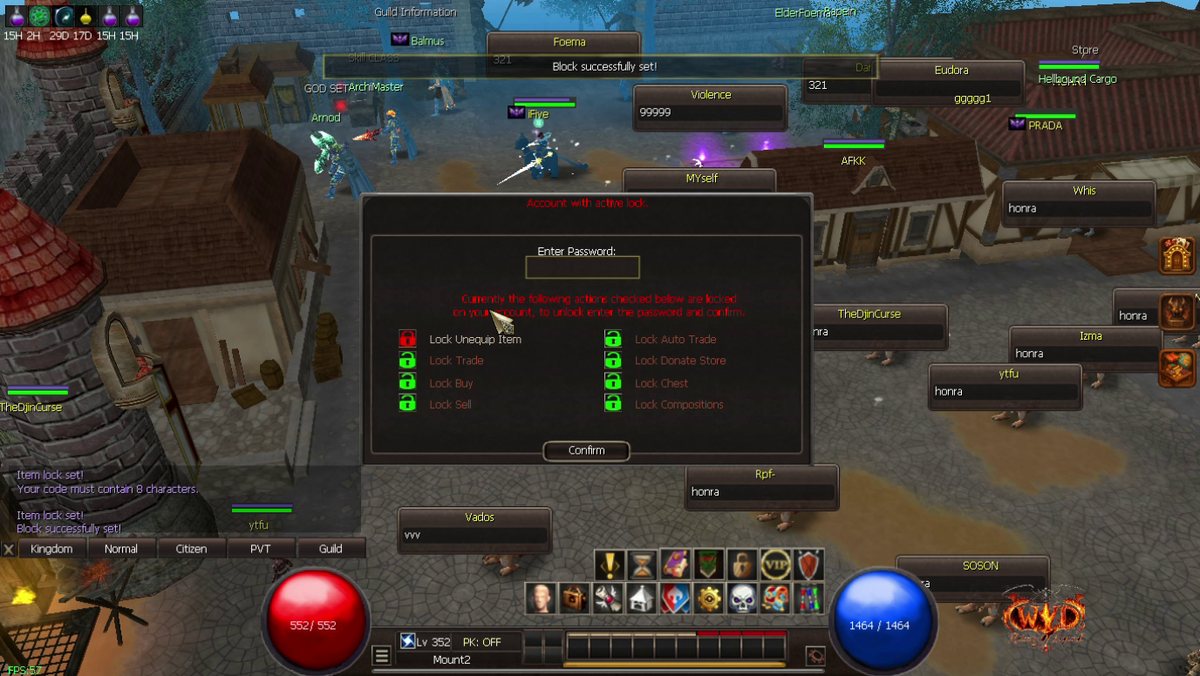
Type a password of exactly 8 characters and click Confirm. The game says "Block successfully set!" and the window title turns red: "Account with active lock". A shorter or longer password is refused with "Your code must contain 8 characters."
Write your password down and never share it.
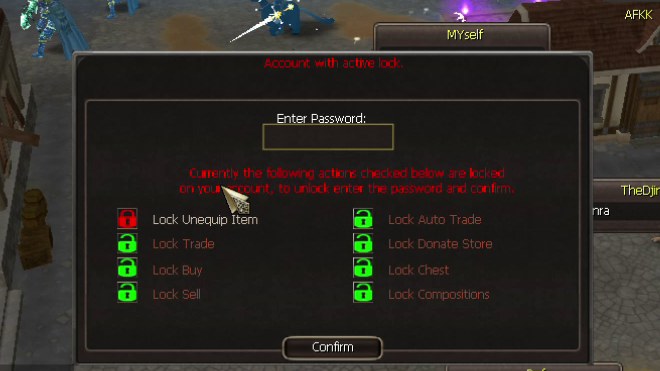
While the lock is on
If you try something you locked, the game stops you. For example: "Unlock your items to be able to move them."
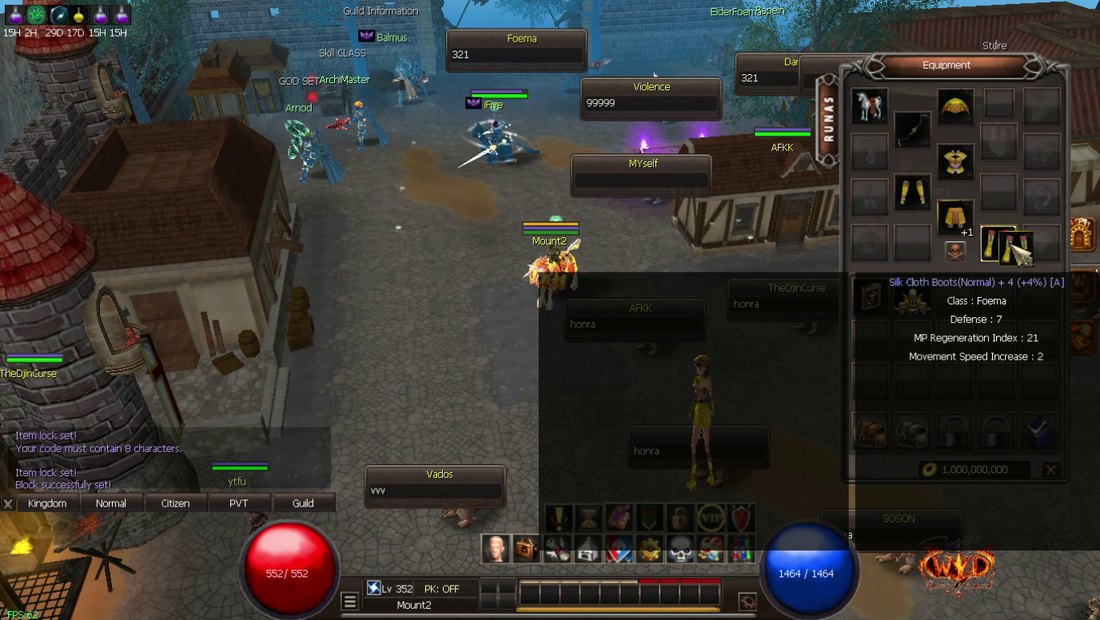
Unlock
Open the lock window again, type your password and click Confirm. The game says "Block successfully removed!" and everything is open again. To lock again, choose your options and set a password again.
If you forget your password, contact the team on Discord.
Moving clip